Considering Accessibility
The BBC homepage is a brilliant example of accessible web practices in the wild (Fig 1.1). The layout clearly distinguishes the different areas of content. The simple interactive elements are easy to use. The copy is understandable—helped along by readable typography and a high contrast between the text and background colors. And the page is straightforward to navigate for people using a screen reader and keyboard navigation.
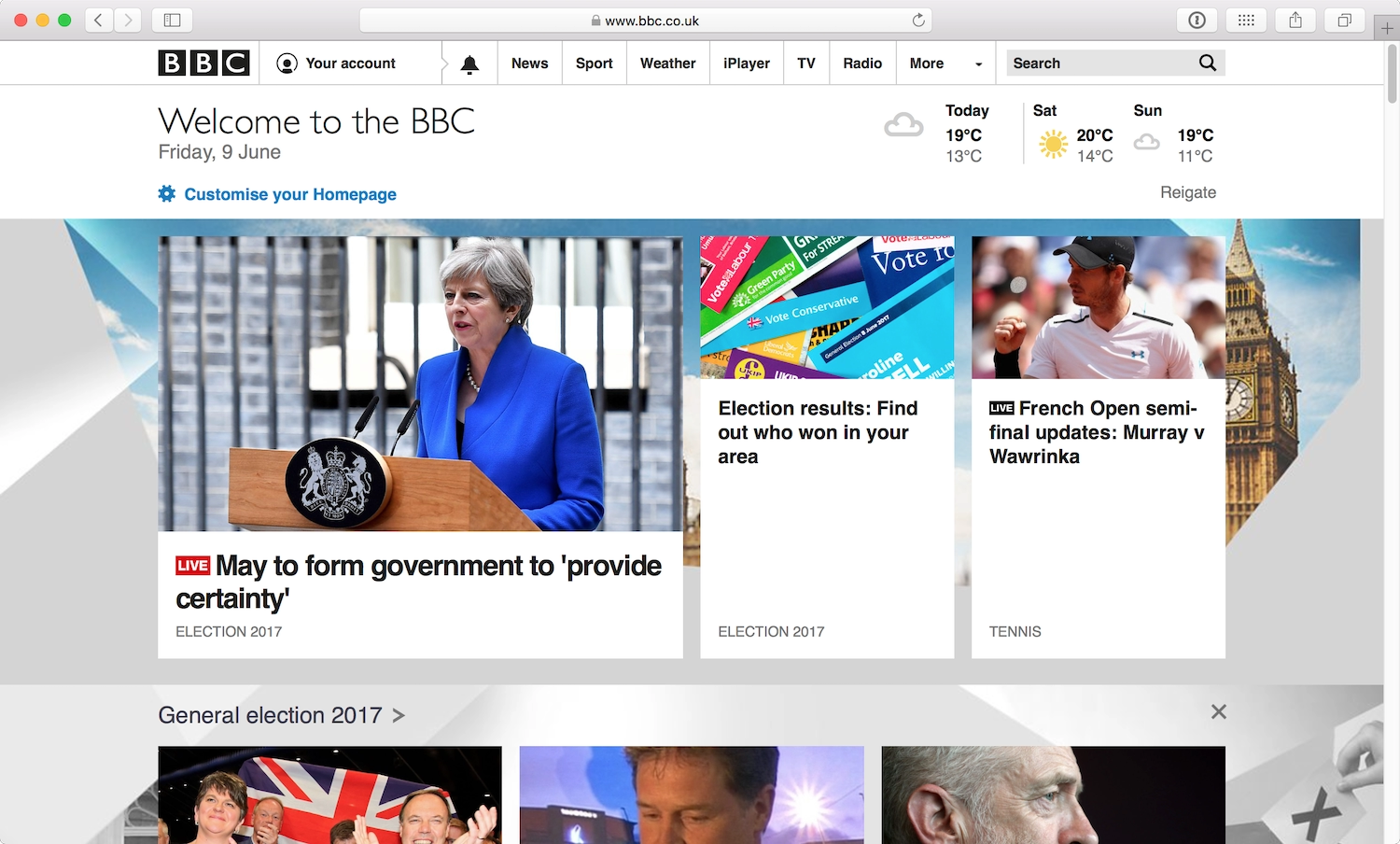
Crucially, the BBC homepage is also a team effort. The accessibility of the site isn’t just the responsibility of one lone developer who fixed all the problems before the page went live. Product managers, content strategists, and information architects defined the homepage’s content and structure based on information and goals provided by researchers and executives. Copywriters and journalists wrote the clear and easy-to-understand copy. The team’s designers shaped the central content’s simple interactive behavior, selected accessible colors, and chose readable typography. The developers built in screen reader accessibility and keyboard navigation support.
Every decision a team makes affects a site’s accessibility. Just like content, interaction design, or web performance, accessibility is a core consideration of creating websites. And—contrary to what many teams assume—it can’t be addressed separately from the rest of the website creation process.
In fact, if you work on the web in any capacity, accessibility is your job.
Excuses, Excuses
Not convinced that accessibility considerations belong in every part of the design and development process? Many people aren’t—often because of a few widely held misconceptions. If you’ve been avoiding accessibility in your web work, some of these excuses may sound familiar:
- “Accessibility is boring.” In the web industry, we tend to obsess over tools. We always want to know about the coolest new framework or the shiniest new aesthetic trend. These are avoidance tactics. While our tools can be cool, we’re distracting ourselves from what really matters: why our products exist and who benefits from them.
- “We can’t tell if anyone really benefits.” There’s a common misconception that people with disabilities don’t use the internet, something I’ll address in greater detail in Chapter 2. For now, I’ll just say that it’s a load of nonsense. At any rate, accessibility doesn’t just benefit people with specific disabilities, it improves the usability of a website for everyone.
- “We don’t know what to do!” That’s precisely why this book exists. You’ll discover that there are many ways to approach accessibility. A few small changes can make a big difference. Or you can build an accessible site from the start, creating a fantastic experience for a wide audience from the very beginning.
- “It’s too hard and there’s too much to do.” Working in design and technology, we do challenging work every day. The web is always moving and changing, and so we frequently come across complications and bugs when we’re building sites. We don’t normally give up at the first sign of an issue; we find a way around it, without compromising the experience. The same is true of accessibility; we just need to add new techniques to our toolkit.
Can we agree to stop making these excuses? Accessibility is a win-win situation for all involved. It’s even good for business: by making our sites accessible for everyone, we also increase our potential user base.
But let’s not get ahead of ourselves. First we need to understand what accessibility really means.
Inclusion
I’ll start with some definitions. Accessibility in the physical world is the degree to which an environment is usable by as many people as possible. Web accessibility is the degree to which a website is usable by as many people as possible. We can think about both kinds of accessibility as forms of inclusion.
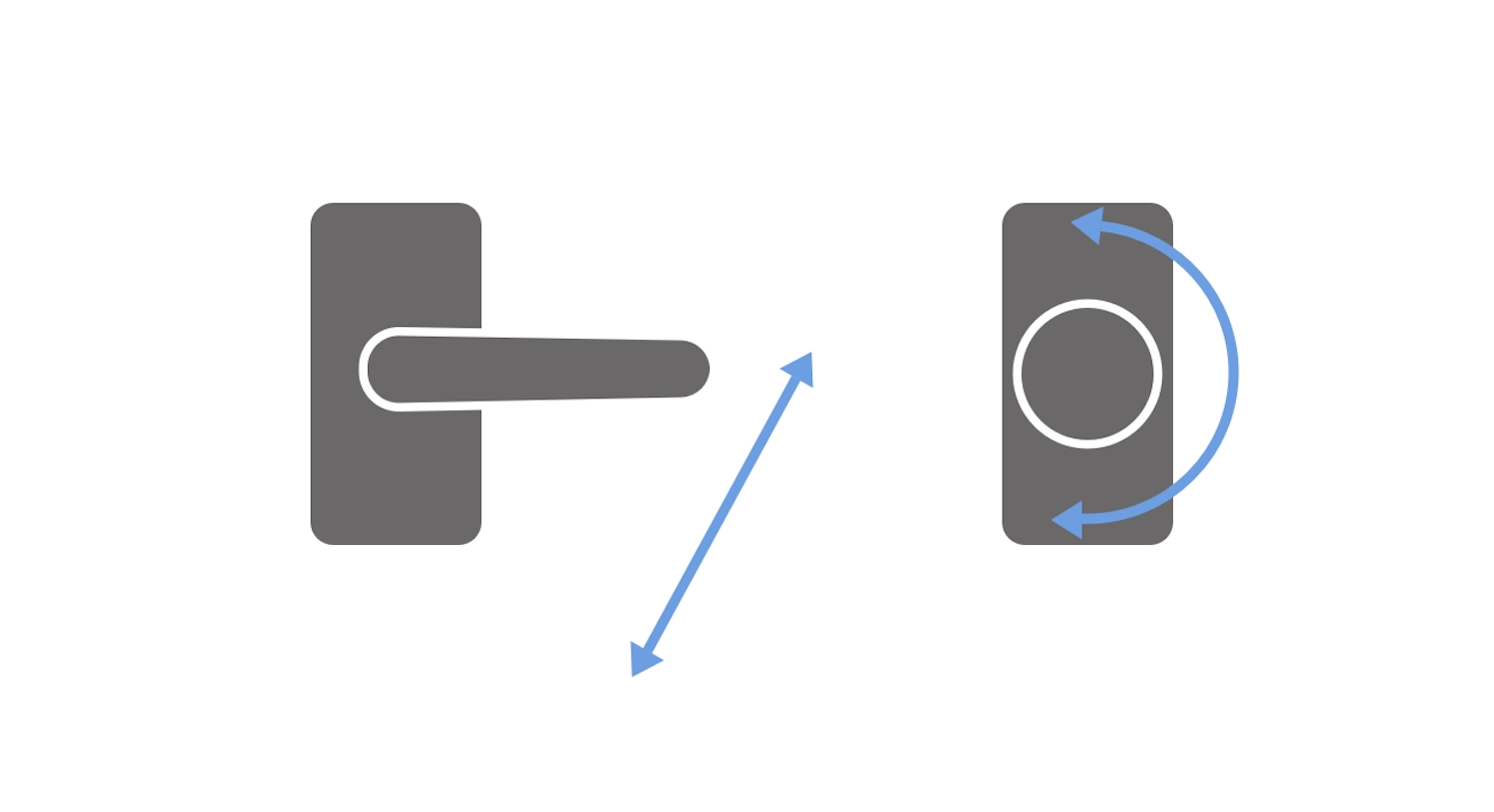
In our physical spaces, we understand that accessibility isn’t just about wheelchairs—our environments are designed to accommodate an increasingly wide range of needs. For example, interior designers are phasing out spherical door knobs in favor of pivoting door handles, because pivoting handles make it easier for people with limited movement in their arms and hands to open doors (Fig 1.2).
Similarly, many pedestrian traffic crossings play a tone to let people with visual difficulties know that it’s safe to cross. Movies offer subtitles so that people with hearing difficulties can follow the dialogue. And signage is written with as few words as possible to help people with reading difficulties understand their environment. These design features don’t make the objects less usable for those without the particular impairments they address—in fact, they usually make a product easier for everyone to use.
Product designers and architects often pay great attention to the accessibility of objects and spaces. They understand that an object designed inclusively can be used by more people and thus have wider commercial appeal. In many countries, public spaces must be inclusive by law: excluding a person by way of design from a non-accessible public space is discriminatory and therefore illegal. However, most laws haven’t yet caught up to the new medium that is the web. Laws vary from country to country and those that do apply to the web are not always enforced.
Universal design
Universal design is a concept coined by architect Ronald L. Mace, founder of the Center for Universal Design. After contracting polio at age nine, Mace used a wheelchair for most of his life. He had to be carried up and down stairs to attend classes, and his wheelchair didn’t fit through the doors of public restrooms. Mace’s experiences led him to study architecture, and later specialize in accessibility. He considered universal design an evolution of accessible design:
Universal design is the design of products and environments to be usable by all people, to the greatest extent possible, without the need for adaptation or specialized design.
The distinction between universal and accessible design is subtle but important. Accessible design considers the needs of people with disabilities. So, for example, accessible design might result in a building having a wheelchair ramp attached to its far side, as an afterthought. It might not be convenient for people using wheelchairs, and it’s unlikely to be used by people who find it faster to use the stairs, but at least there’s some form of access (Fig 1.3).

On the other hand, universal design considers the needs of a diverse human population. Universal design might result in a building with a combined ramp and stairs, opening access to all and forcing no one to go out of their way to choose one option or the other (Fig 1.4).

Whereas accessible design creates products that are usable by those with disabilities, universal design creates products for the widest possible audience, which includes, but isn’t limited to, people with disabilities. Good universal architectural design is elegant, considerate of all its users, and seems to effortlessly suit the space.
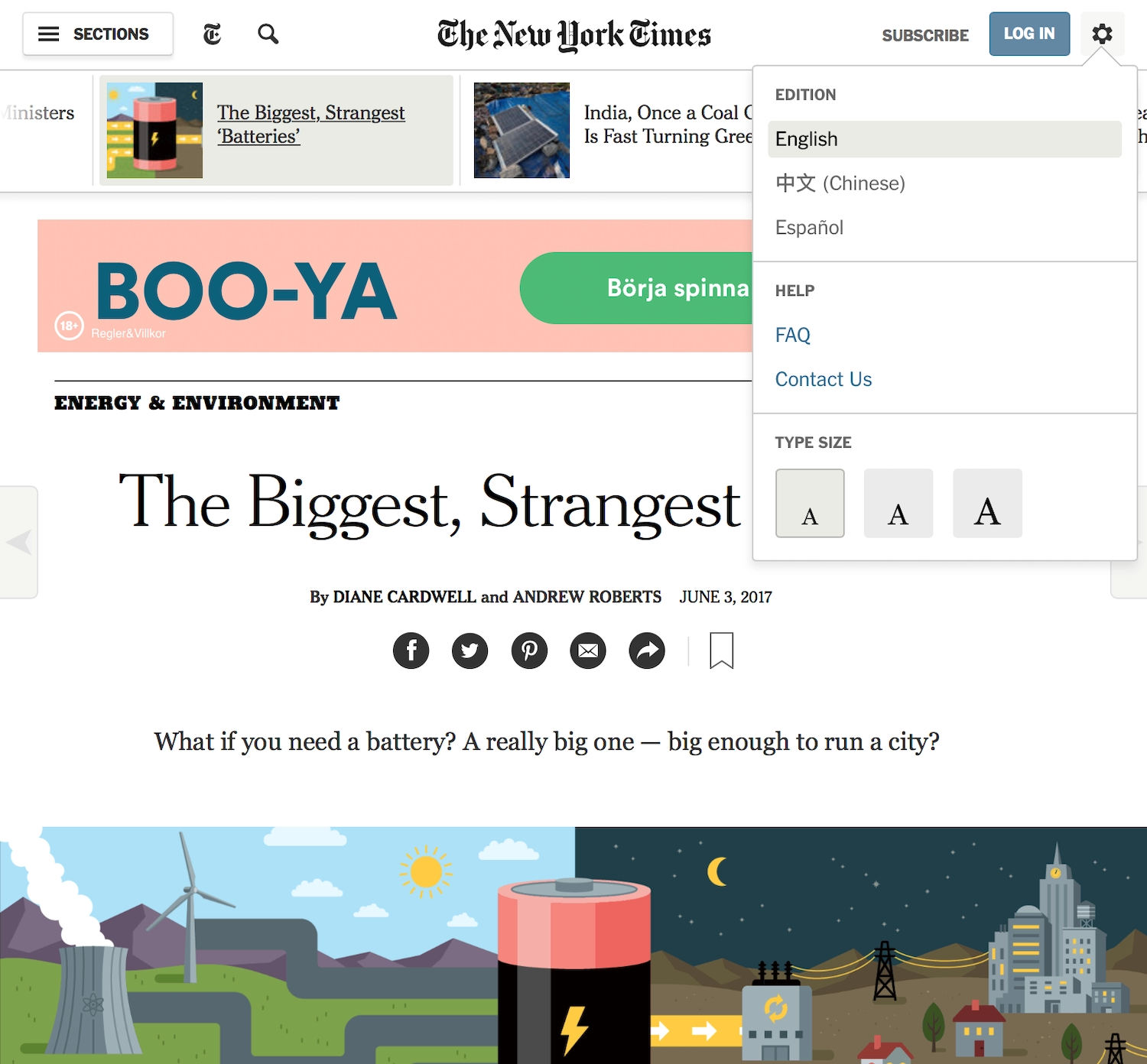
This contrast in approach is directly transferable to web design. Accessible web design might mean adding a button to your site that allows people to view the text at a larger size. It’s yet another element crowding a page layout, and people have to go out of their way to find it (Fig 1.5).
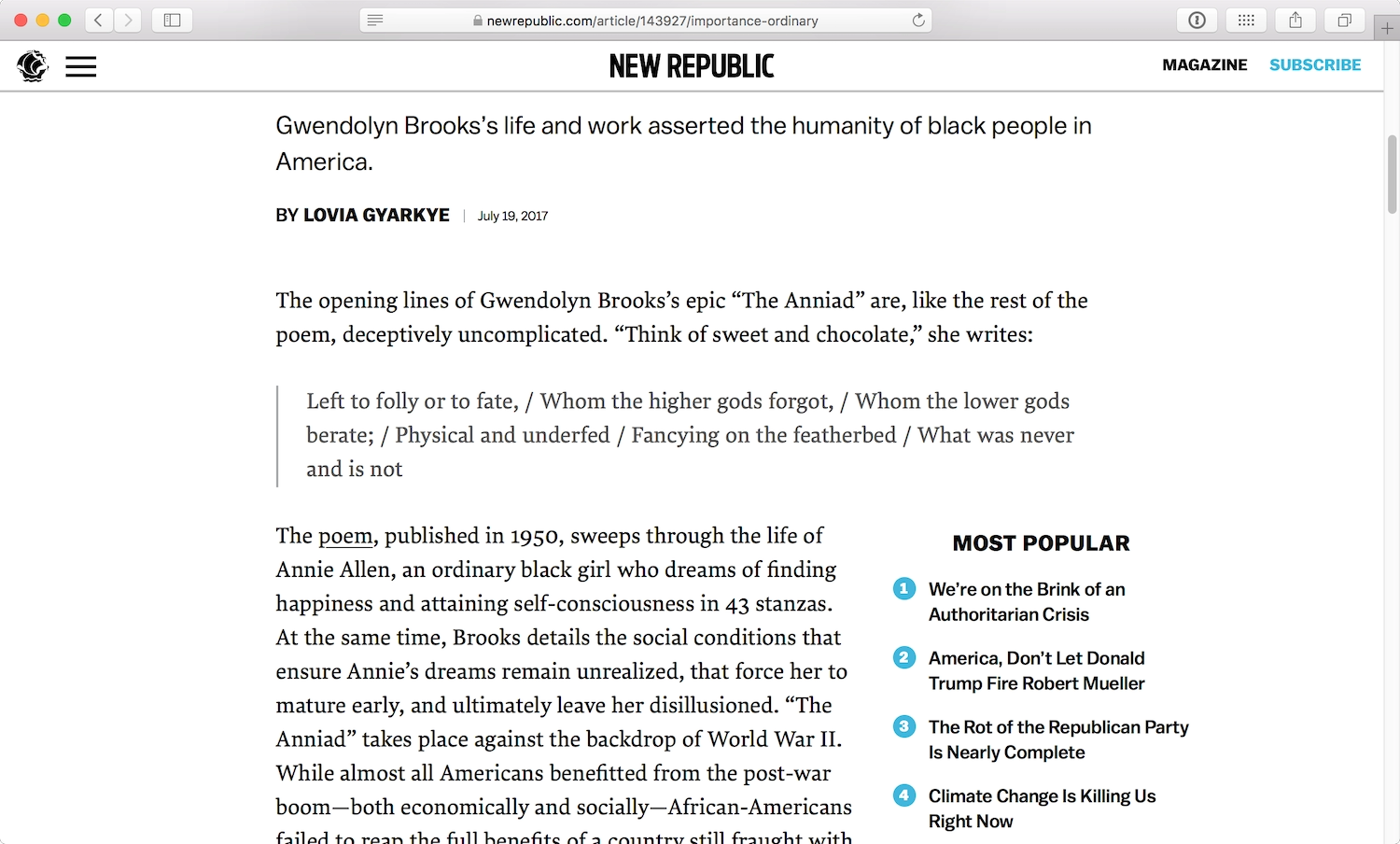
Universal web design, applied to the same problem, might mean making all the text larger so that a greater number of people can read the text without needing to find a button or use zoom shortcuts (Fig 1.6).
Throughout this book, I take a universal design approach to accessibility wherever possible. Universal web accessibility helps us create sites that are usable by the widest, most diverse audience, rather than creating bolt-on solutions that might benefit one group at the expense of another. (But I won’t always use the terms “universal design” or “universal web accessibility” because they’re a bit of a mouthful.)
Empathy
Empathy is the ability to share the feelings of others. It’s what makes us good at creating products for other people as we can better understand their problems and create solutions that fit their needs. It’s always easier to create products for people who have the same needs as us, since we understand our own requirements—and the reasons behind them—better than anybody else. Many successful products are created when people “scratch their own itch.”
The problem with creating products to suit only our needs is that, in the tech industry, we are largely people of similar ages, abilities, backgrounds, and educational and financial statuses. We end up creating products for people just like us, forgetting that other people may have requirements that differ from, or even conflict with, our own. To create more useful, usable products, we need to understand and care about differing needs.
When Jen Simmons interviewed Dale Cruse for The Web Ahead podcast (https://a4e.link/01/01/), Cruse suggested that the average accessibility professional is older than the average web professional, perhaps because many people gain empathy through age. As we get older, we start to experience age-related impairments, such as eyesight degeneration or motor difficulties associated with conditions like arthritis. If your eyesight is poor, or you struggle to use a keyboard and mouse comfortably for long periods of time, it’s much easier to understand and empathize with others experiencing similar problems.
Empathy in design is far easier when we work in diverse teams. Diversity comes from a range of ages, abilities, ethnicities, socio-economic classes, personal backgrounds, genders, education levels, and many more characteristics which give each of us a unique experience of the world. Spending meaningful time with people whose experiences differ from our own can help us develop a greater understanding of each other’s needs. The greater capacity a team has for understanding their audience, the more likely they are to solve that audience’s problems.
Having a diverse team can also prevent us from “othering” our audience. Have you ever heard someone refer to users or clients as “stupid”? It’s easy to be dismissive of the people using our products if we think in us-versus-them terms. This is also why some designers want to avoid the term “user” in favor of “person” or “human.” Alternative terms can be a little tricky, so while I use “user” throughout this book, it’s important to remember the essential humanity of everyone interacting with our products and interfaces.
Believing we know what’s best for others, despite our differing needs, can also result in a patronizing and incorrect solution (sometimes referred to as “colonial design”). For example, sometimes when developers first learn about screen readers, they provide additional instructions and cues in text that only visible to screen readers. They’re trying to be helpful, but these additional instructions on how to use the interface are usually unnecessary, disruptive and distracting for people who just want to get to the page content.
Screen Readers
Screen readers have become the symbol for web accessibility, and understandably so: as a piece of assistive technology that reads the contents of a screen (either aloud via audio output or via a braille output device), screen readers have made text-based webpages accessible for those with visual impairments.
Screen readers used to be very expensive, specialist software that few people could afford. Job Access With Speech (JAWS), a Windows-based screen reader, has been around since 1995 and is probably the most capable and well-known screen reader of its kind. But JAWS currently costs around $900, which could be prohibitively expensive for many people.
Apple’s VoiceOver screen reader has been revolutionary for users of Apple computers and devices. Before Mac OS X 10.4 introduced this feature, screen readers were usually stand-alone software that could be installed on a computer. VoiceOver, however, included a screen reader as a core part of the operating system and on every device (although, granted, they are expensive devices). It works with all Apple software, including the browser, and works with all native controls provided to developers on the Apple platform.
Over the last few years, free and open-source screen readers have popped up, such as NVDA (NonVisual Desktop Access) for Windows, Linux Screen Reader (LSR), and Orca for Linux. Window-Eyes, a proprietary screen reader for Windows, used to be as expensive as JAWS but is now free. Microsoft has a screen reader called Narrator which is similar to Apple’s VoiceOver and has recently been improved a great deal. Both VoiceOver and Narrator can be enabled quickly, providing instant access to anyone requiring a screen reader. No configuration is needed unless a user has other preferences (Fig 1.7).
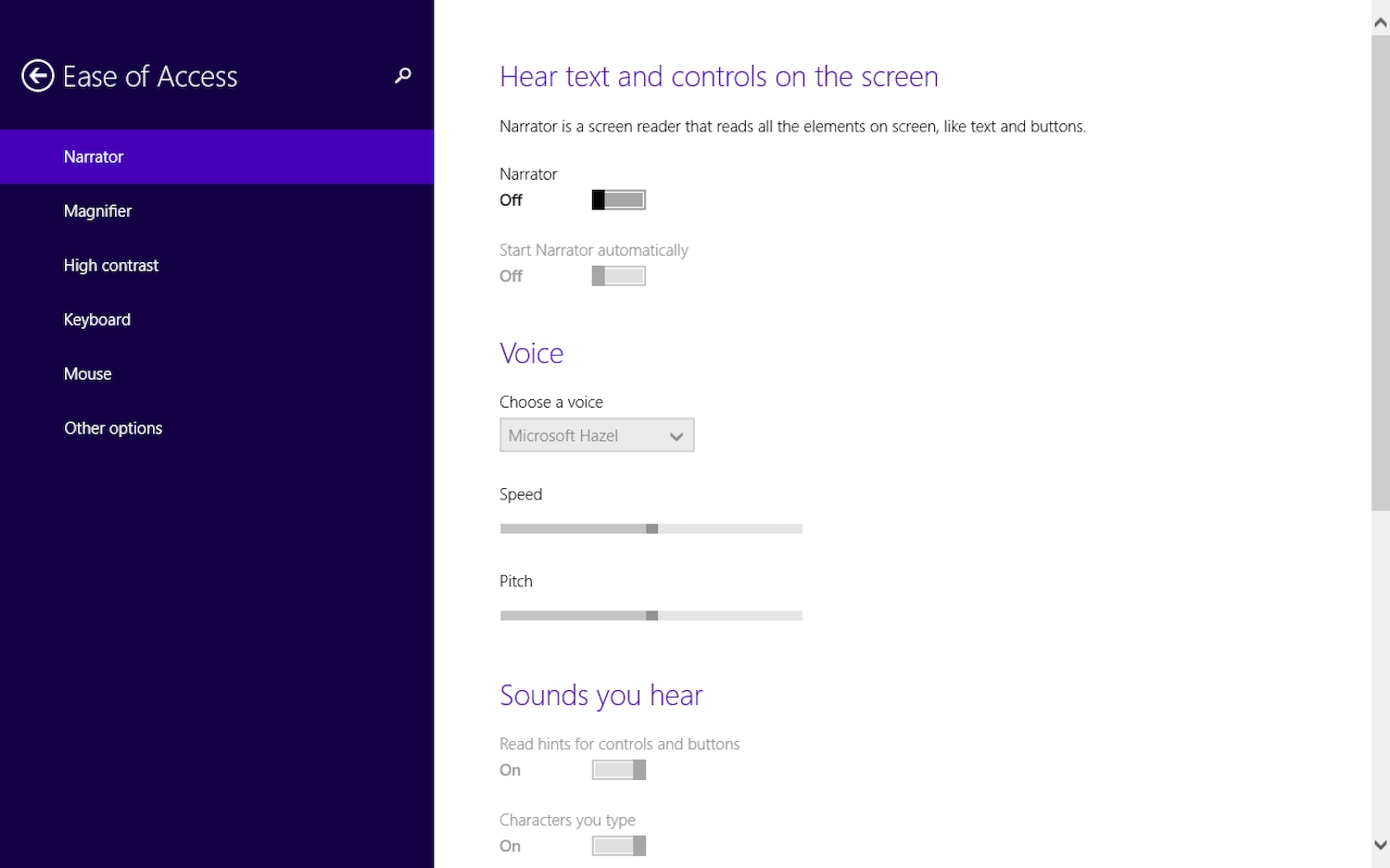
When deciding on which screen reader you want to use (or can afford), you’re left with striking a balance. JAWS is expensive, but it offers better support for more applications across Windows than other screen readers. VoiceOver has good support on Apple’s own apps and web browsers, but mixed support across other developers’ apps.
Screen readers don’t just benefit those with visual impairments. Some people can consume information more comfortably and conveniently by hearing text rather than reading it. For example, many people prefer audiobooks over reading, and sighted users with learning difficulties may prefer screen readers for reading lengthy amounts of text aloud.
Screen readers also enable people to engage in other activities while listening—such as driving while listening to an SMS text message. As the web starts finding its way into more mobile systems, we’re likely to come across more use cases like this.
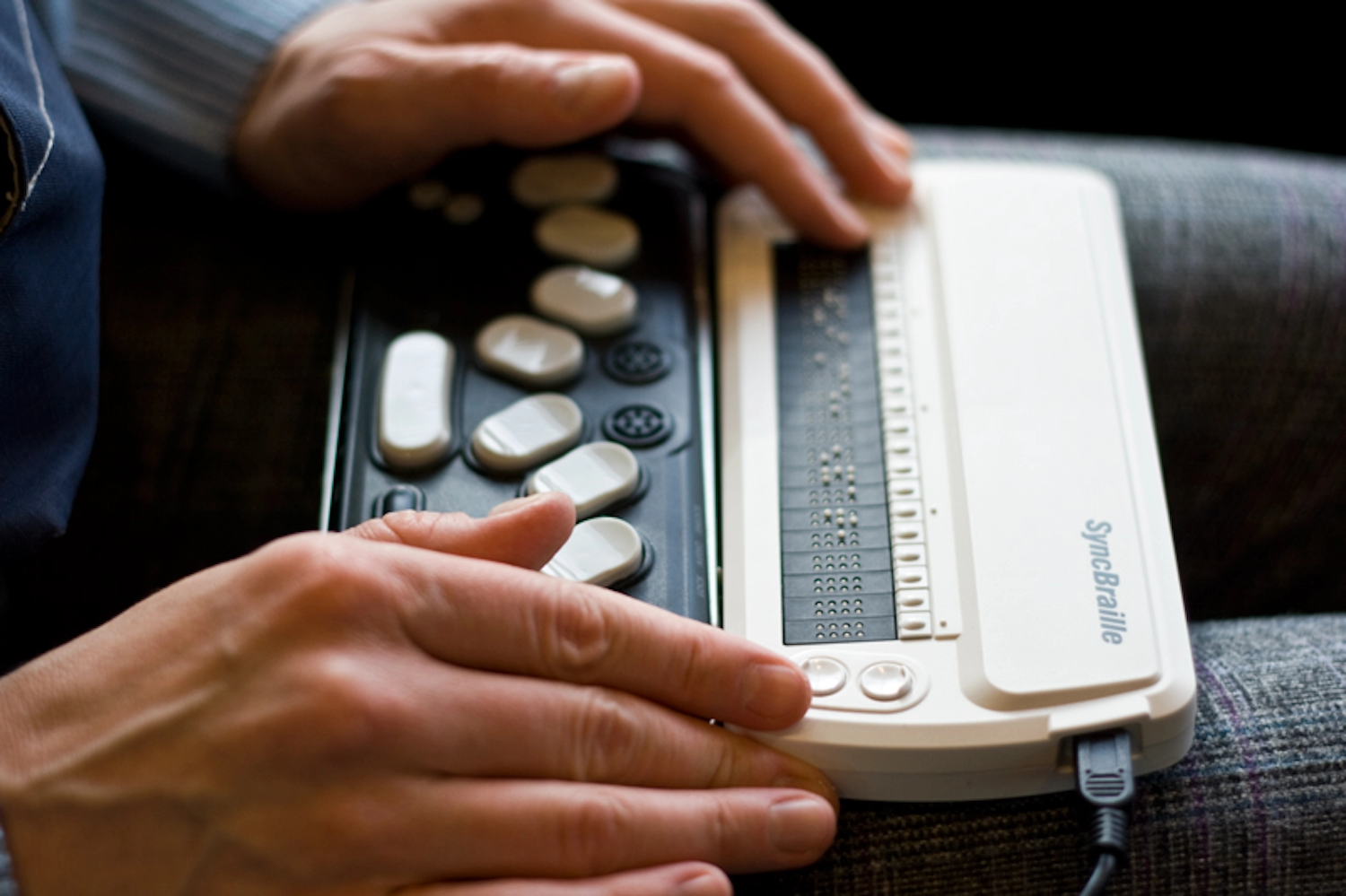
For people with visual impairments, a refreshable braille display can be used with a screen reader. Some braille displays also enable users to write in braille and have their input automatically translated back into text (Fig 1.8).
Keyboard navigation
Keyboard navigation describes a situation when a person uses only a keyboard to access a computer or site. Screen readers are often (but not always!) paired with keyboard navigation. Sometimes specialist keyboards, such as custom keyboards or on-screen keyboards, are used to assist with keyboard use and keyboard-only navigation.
Most keyboard-based web browsing uses the Up and Down cursor keys for scrolling, the Tab key for moving between interactive elements, and the Space bar or Enter key for interaction. Screen readers will often map keys to different, more contextually relevant, commands.
Keyboard navigation isn’t just used by screen reader users, it’s also very valuable for those who don’t have a mouse or have difficulties using a mouse. Lots of programmers favor keyboard navigation because they spend so much time in text-based console windows. And many people use keyboard navigation when filling out forms on the web—you may not even realize how often you tab between fields!
Beyond Screen Readers
In the same way that accessibility in our physical environment isn’t just about wheelchairs, accessibility on the web isn’t just about screen readers. People in diverse environments and with varying abilities benefit from well-considered accessibility.
For every device, there are many different ways to input and output information from a computer and the web. Assistive technology is just another bridge between the user and their device. Some inputs, such as the standard mouse and hardware keyboard, are familiar to anyone using a desktop computer. But people use alternatives for a multitude of reasons.
Navigation hardware
There are many alternatives to mice and cursor-based navigation: touchpads and touchscreens, upright or vertical mice, trackball or rollerball mice, even foot-operated mice.
The behavior of these alternatives is generally the same or similar to hand-operated mouse behavior, and requires little additional software. There are also alternatives to mice that require some extra configuration to fit an individual user’s preferences, such as switch inputs and eye trackers.
Switch inputs
Switch devices allow people to interact with a screen via a switch. The switch’s software moves through options on the screen, and people trigger the switch when their desired option is highlighted. Switch inputs combine hardware and software, and may be mechanical buttons, adjustable pressure switches, foot plates, handlebar-like grasp switches, or electronic sensors. They can be used to replace keyboards, mice, or both.
Apple recently made their operating systems natively accessible to switch control, which means you can easily test the general switch accessibility of your sites on iOS and macOS. Mac’s Switch Control can be enabled from the Accessibility settings, which house a huge variety of customizable settings. iOS and Mac-compatible switches are available to buy from specialty stores (some are Bluetooth-enabled, which is handy for the iPhone!). But if you don’t have a physical switch, you can still use touch or mouse clicks to trigger interactions.
Eye trackers
Eye trackers are similar to electronic or sensor switches, but rely on a camera to analyze the movement of the user’s eyes and navigate the screen accordingly. Eye trackers can be used to help people with disabilities communicate via a computer, but they are generally very expensive.
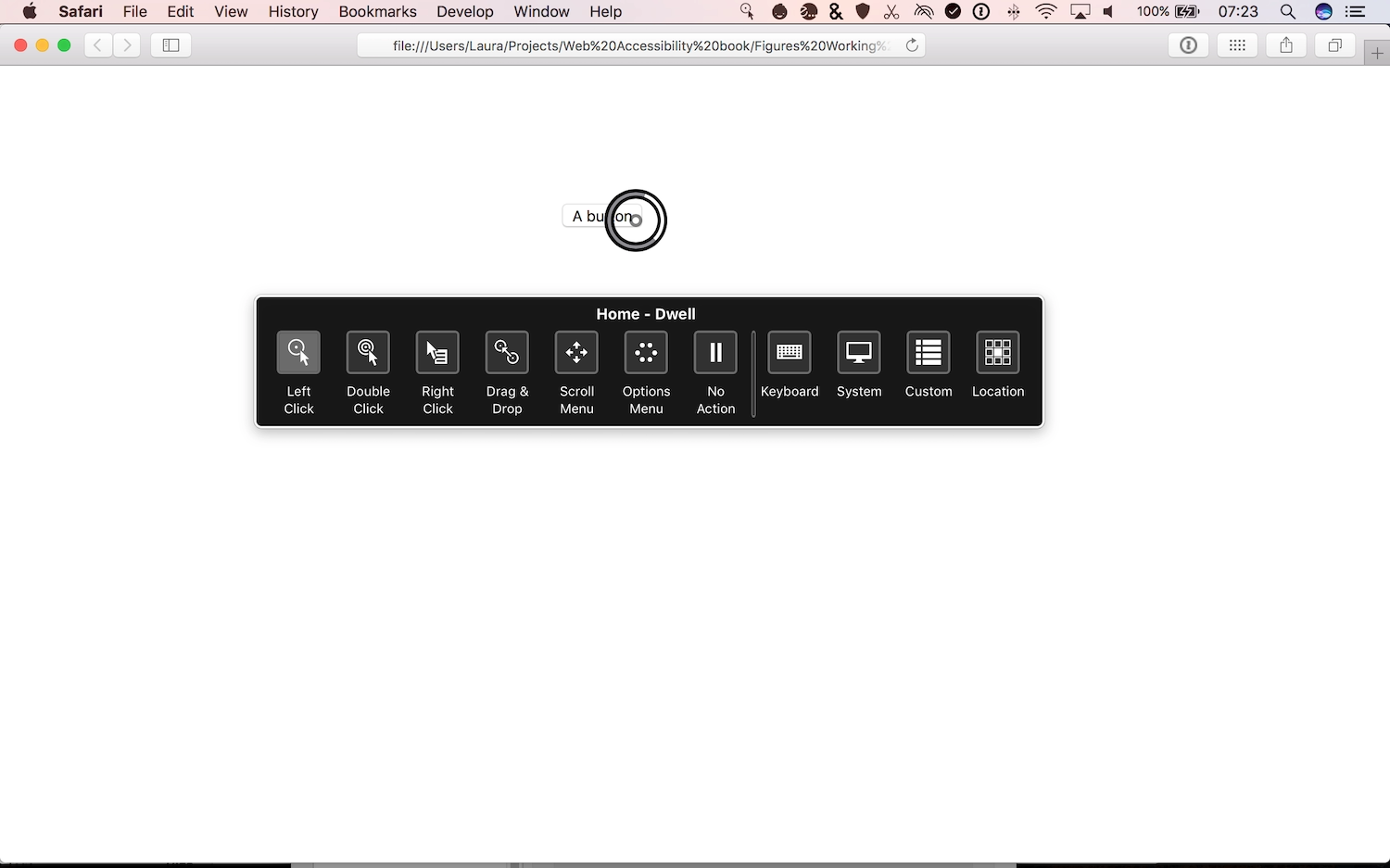
Dwell Control was also recently added to macOS to enable the use of eye-tracking or head-tracking to control the mouse. The Dwell Control Home Panel helps users click, drag, and scroll to interact with the screen (Fig 1.9).
Speech recognition
Speech recognition software is used with a microphone so that a computer can be operated with spoken commands. Since speech recognition technology has improved so much in recent years, it’s something that many of us are familiar with from our smartphones. Apple has Siri, Microsoft has Cortana, and Google has Google Assistant.
These simple virtual assistants can work with any voice, though they generally aren’t as capable as dedicated voice-user interfaces or speech-to-text software. The more advanced, expensive software is often “trained” to a user’s voice by having them read from a set text. This enables the software to recognize nuances and accents in the user’s speech and improve its accuracy.
Screen magnifiers
Screen magnifiers offer zooming functionality and are built into operating systems like macOS, Windows, and Linux. Screen magnifiers usually have two modes: the first involves magnifying a small area of the screen (directed by the cursor) as a picture-in-picture, while the second mode magnifies the entire screen, zooming in on a particular area. (Fig 1.10).
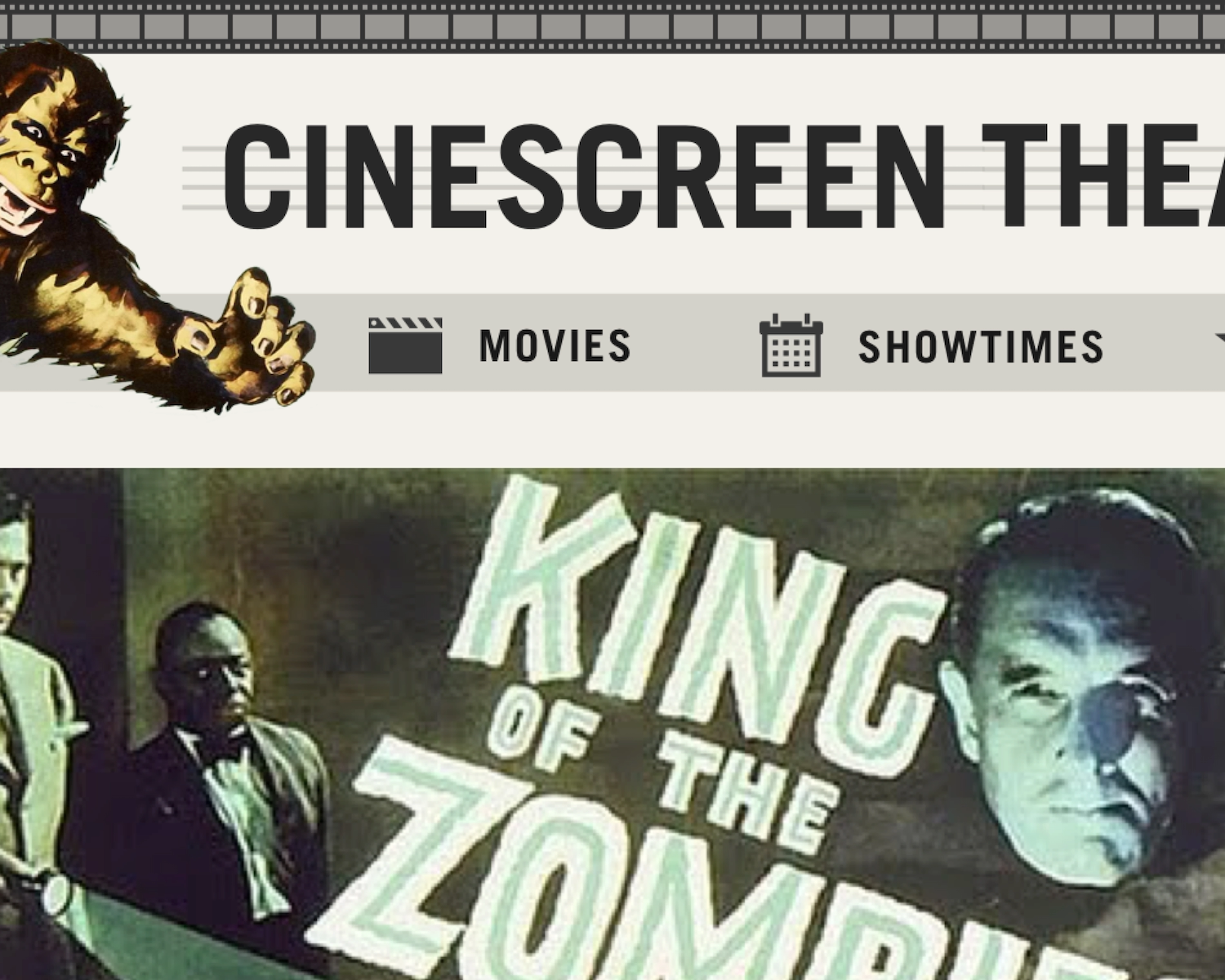
Though screen magnifier tools are useful when a page can’t be zoomed in the browser, these tools tend to obscure or hide other content, reducing the readability of the whole screen. Images of text render poorly when zoomed, and should be avoided (for this and other reasons, which we’ll look at in Chapter 5) (Fig 1.11).
Assistive technologies can give people access to the web who wouldn’t otherwise have been able to engage. But they can only help people to a point. For example, video players can be made easier to access by using assistive technologies, but the video content can only be fully accessible for hearing-impaired people using subtitles or transcripts and, for visually-impaired people, using audio description.
Making our sites accessible starts with the understanding that people access the web differently, and continues with every member of the team ensuring their output is inclusive.
We’re in This Together
When we start learning how to make our sites accessible, we can struggle because, well, accessibility itself isn’t always accessible. Take a11y, for example. You might know what a11y means if you’ve heard of i18n —they’re both alphanumeric acronyms. A11y stands for “accessibility” and i18n for “internationalization”. The letters between the first and last have been replaced by a number representing the number of missing letters. Even I need to reread that sentence to understand it, and I’m the one who wrote it! It’s definitely not universally accessible.
Along with the mystifying jargon, accessibility is often presented as something that should be left to “experts.” We do need experts for their specialized knowledge and guidance, but there aren’t enough accessibility experts in the world to leave the task of building an accessible web in their hands alone.
That’s why it’s up to us—you, me, designers and developers, writers and information architects, everyone—to make the web a fairer place.